



Example: home automation
Let’s build a home you can control: organize rooms, dim a light, activate a scene, schedule it, and react to sensor readings. Then connect those actions to Home Assistant and a live browser interface.
View on GitHub
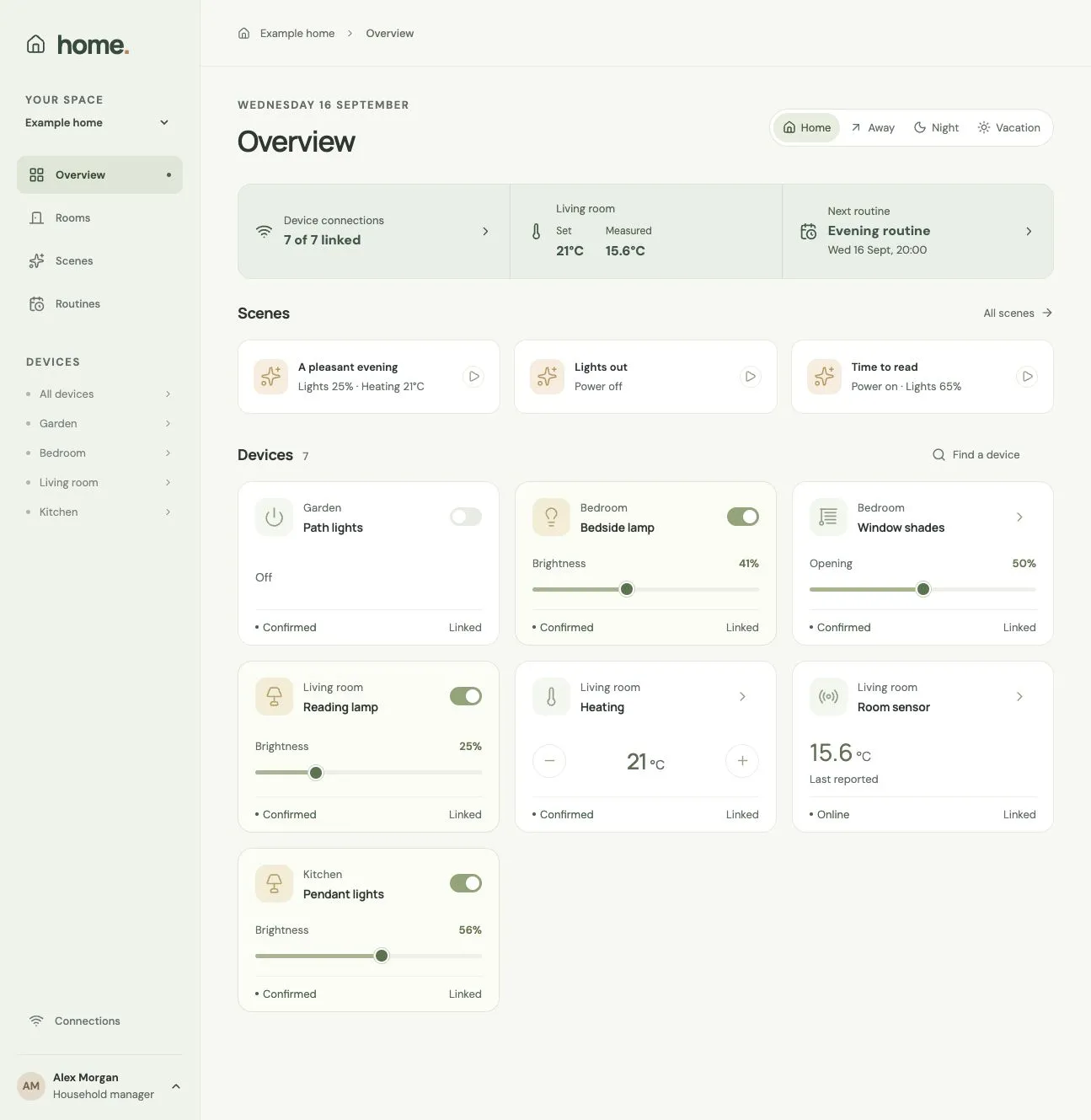
The completed Home app, shown with its Home Assistant connection.
This continues Building your first app. We will use its commands, Models, queries and fixtures without introducing them again.
Work through the app
Section titled “Work through the app”Clone the current example and open it as your working project:
git clone https://github.com/fluxzero-io/fluxzero-sample-home.gitcd fluxzero-sample-homefz devThe checkout contains the completed application. Rebuild the classes and methods below in their existing files, using the surrounding value types, authentication setup and UI as scaffolding. Each section adds one part of the application; the source links provide the complete implementation where we show a method rather than a whole file. The Kotlin tabs express the same steps using the example’s existing Java model and value types.
Open the app and sign in as alex. Start by creating a room, changing a light and activating A pleasant evening. Keep this result in mind as we build from the household outward. The default profile saves device requests; connecting real equipment comes later.
Give rooms their own lifecycle
Section titled “Give rooms their own lifecycle”A home owns rooms, but each room can be renamed, moved or removed independently. Start in household/api/model
with Home and Space. A space’s parent can be a home or another space, so a floor can contain several rooms.
@Model(searchable = true)@Withpublic record Home(@EntityId HomeId id,                   HomeDetails details,                   java.time.ZoneId timeZone,                   HomeMode mode) implements Place {}
@Model@Withpublic record Space(@EntityId SpaceId id,                    @Parent(types = {Home.class, Space.class}, pathInParent = "spaces")                    PlaceId<?> parentId,                    SpaceDetails details,                    DeviceId primaryLightId) implements Place {}
The parent relationship supplies the hierarchy. We do not keep a second list of rooms inside Home.
searchable = true lets this home and its descendants participate in search.
Now implement the room-creation command. It checks the destination before creating the room:
public record AddSpace(@NotNull SpaceId spaceId, @NotNull PlaceId<?> parentId,                       @NotNull @Valid SpaceDetails details) {    @AssertLegal void parentExists() {        if (!Fluxzero.loadModel(parentId).isPresent()) {            throw new IllegalCommandException("Choose an existing home or space.");        }    }
    @Apply Space apply() { return new Space(spaceId, parentId, details, null); }}
data class AddSpace( @field:NotNull val spaceId: SpaceId, @field:NotNull val parentId: PlaceId<*>, @field:NotNull @field:Valid val details: SpaceDetails) { @AssertLegal fun parentExists() { if (!Fluxzero.loadModel(parentId).isPresent) { throw IllegalCommandException("Choose an existing home or space.") } }
@Apply fun apply() = Space(spaceId, parentId, details, null)}Use the existing CreateHome to establish the root first. Create a floor under it and a room under
the floor. The test below uses the IDs and fixed clock from HouseExample; this first test creates
its own state so you can see the whole setup. Add it to a HomeTutorialTest under src/test/java/io/fluxzero/home,
with static imports from HouseExample and JUnit assertions. Use that class for the later checkpoints too.
@Testvoid createRoom() { TestFixture.create().givenCommands( new CreateHome(HOME, new HomeDetails("Canal house"), AMSTERDAM), new AddSpace(FLOOR, HOME, new SpaceDetails("Ground floor", SpaceKind.FLOOR))) .whenCommand(new AddSpace(LIVING, FLOOR, new SpaceDetails("Living room", SpaceKind.ROOM))) .expectSuccessfulResult() .expectThat(f -> assertEquals(FLOOR, Fluxzero.loadModel(LIVING).get().parentId()));}@Testfun createRoom() { TestFixture.create().givenCommands( CreateHome(HOME, HomeDetails("Canal house"), AMSTERDAM), AddSpace(FLOOR, HOME, SpaceDetails("Ground floor", SpaceKind.FLOOR))) .whenCommand(AddSpace(LIVING, FLOOR, SpaceDetails("Living room", SpaceKind.ROOM))) .expectSuccessfulResult() .expectThat { assertEquals(FLOOR, Fluxzero.loadModel(LIVING).get().parentId()) }}Move rooms and group them
Section titled “Move rooms and group them”Implement MoveSpace next: return space.withParentId(parentId) after checking that the destination
belongs to the same home. Moving a room changes its relationship; devices in that room keep their identities.
A zone is different: it groups existing spaces without moving them. Implement DefineZone
with a set of SpaceIds and check each ID against the home graph. For example, “Downstairs” can select the living
room and kitchen while they remain under their original floor.
Residents are independent children too. AddResident creates one with unknown presence;
ArriveHome changes that presence to HOME. Home mode is a separate household decision, changed
with ChangeHomeMode; an arrival does not automatically choose it.
Check: create a second room, move it under the floor and define a zone containing both rooms. The zone should refer to the same rooms you see under that floor. The existing HomeModelTest exercises these relationships and their removal rules.
Add a device and its first control
Section titled “Add a device and its first control”A lamp belongs to a room. In devices/api/model/Device, keep its identity, @Parent SpaceId, name,
capabilities and pending settings. Capabilities describe the controls it supports; measurements describe what it
can report. AddDevice creates the device with empty pending settings.
Build one control first: dimming. Implement DimLight in devices/api:
public record DimLight(DeviceId deviceId, @NotNull @Valid LightLevel brightness) implements DeviceCommand {    @Override    public DeviceSetting setting() {        return brightness;    }
    @Apply    Device apply(Device device) {        return device.withPendingSettings(device.pendingSettings().with(brightness));    }}
data class DimLight( private val deviceId: DeviceId, @field:NotNull @field:Valid val brightness: LightLevel) : DeviceCommand { override fun deviceId() = deviceId override fun setting(): DeviceSetting = brightness
@Apply fun apply(device: Device): Device = device.withPendingSettings(device.pendingSettings().with(brightness))}Put the shared capability check in Device: a DeviceCommand must target a capability the device
has. Its other @Apply method records the message timestamp as requestedAt. The command changes the requested
setting; it does not invent an observation from the lamp.
For the next tests, house() supplies the home, rooms, a light, heating and a sensor using ordinary creation
commands. It also fixes the clock at NOW. Check the control through the fixture:
@Testvoid dimLight() { house().whenCommand(new DimLight(LIGHT, new LightLevel(40))) .expectSuccessfulResult() .expectThat(f -> { assertEquals(new LightLevel(40), Fluxzero.loadModel(LIGHT).get().pendingSettings().get(Capability.LIGHT_LEVEL)); assertNull(Fluxzero.loadModel(LIGHT, DeviceStatus.class).get()); });}@Testfun dimLight() { house().whenCommand(DimLight(LIGHT, LightLevel(40))) .expectSuccessfulResult() .expectThat { assertEquals(LightLevel(40), Fluxzero.loadModel(LIGHT).get().pendingSettings()[Capability.LIGHT_LEVEL]) assertNull(Fluxzero.loadModel(LIGHT, DeviceStatus::class.java).get()) }}Add TurnOn, TurnOff and SetRoomTemperature using the same pattern. The other controls—blinds, locks,
media and charging—vary the setting value, so we will not repeat their implementations here.
DeviceBehaviorTest checks the capability and value rules for the complete set.
Let device observations confirm requests
Section titled “Let device observations confirm requests”After asking for 40%, we need to know whether the lamp reached it. Give observations their own DeviceStatus Model, parented to the device. It stores the observation time, availability, reported settings and sensor readings.
Implement ReportDeviceStatus to update that Model. In the same command, remove pending settings
that a newer online report confirms. This is the confirmRequest method:
@Apply Device confirmRequest(Device device) { if (availability != Availability.ONLINE || device.requestedAt() == null || !observedAt.isAfter(device.requestedAt())) return device; var pending = device.pendingSettings().withoutConfirmedBy(reportedSettings); return device.withPendingSettings(pending).withRequestedAt(pending.isEmpty() ? null : device.requestedAt());}@Applyfun confirmRequest(device: Device): Device { if (availability != Availability.ONLINE || device.requestedAt() == null || !observedAt.isAfter(device.requestedAt())) return device val pending = device.pendingSettings().withoutConfirmedBy(reportedSettings) return device.withPendingSettings(pending) .withRequestedAt(if (pending.isEmpty) null else device.requestedAt())}Keep the command’s checks for supported measurements and observation time. An older report must not replace a newer one. Now demonstrate the useful behavior: after confirmation, a physical change leads the displayed state.
@Testvoid followPhysicalChange() { house().givenCommands(new DimLight(LIGHT, new LightLevel(40))) .givenElapsedTime(Duration.ofSeconds(1)) .whenCommand(new ReportDeviceStatus(LIGHT, NOW.plusSeconds(1), Availability.ONLINE, new DeviceSettings(List.of(new LightLevel(40))), Map.of())) .expectThat(f -> assertTrue(Fluxzero.loadModel(LIGHT).get().pendingSettings().isEmpty())) .andThen().givenElapsedTime(Duration.ofSeconds(1)) .whenCommand(new ReportDeviceStatus(LIGHT, NOW.plusSeconds(2), Availability.ONLINE, new DeviceSettings(List.of(new LightLevel(10))), Map.of())) .expectThat(f -> { assertTrue(Fluxzero.loadModel(LIGHT).get().pendingSettings().isEmpty()); assertEquals(new LightLevel(10), Fluxzero.loadModel(LIGHT, DeviceStatus.class) .get().reportedSettings().get(Capability.LIGHT_LEVEL)); });}@Testfun followPhysicalChange() { house().givenCommands(DimLight(LIGHT, LightLevel(40))) .givenElapsedTime(Duration.ofSeconds(1)) .whenCommand(ReportDeviceStatus(LIGHT, NOW.plusSeconds(1), Availability.ONLINE, DeviceSettings(listOf(LightLevel(40))), emptyMap())) .expectThat { assertTrue(Fluxzero.loadModel(LIGHT).get().pendingSettings().isEmpty) } .andThen().givenElapsedTime(Duration.ofSeconds(1)) .whenCommand(ReportDeviceStatus(LIGHT, NOW.plusSeconds(2), Availability.ONLINE, DeviceSettings(listOf(LightLevel(10))), emptyMap())) .expectThat { assertTrue(Fluxzero.loadModel(LIGHT).get().pendingSettings().isEmpty) assertEquals(LightLevel(10), Fluxzero.loadModel(LIGHT, DeviceStatus::class.java) .get().reportedSettings()[Capability.LIGHT_LEVEL]) }}The old 40% request has finished. We do not keep sending it when someone changes the lamp elsewhere.
Combine controls into a scene
Section titled “Combine controls into a scene”A scene stores actions rather than device state. Implement Scene with its own ID, a Home parent, details and a
list of SceneActions. Each action selects targets and creates a normal device command. For dimming, implement:
public record DimLights(@NotNull @Valid SceneTarget target, @NotNull @Valid LightLevel brightness) implements SceneAction {    @Override    public Capability capability() {        return Capability.LIGHT_LEVEL;    }
    @Override    public DeviceCommand commandFor(DeviceId deviceId) {        return new DimLight(deviceId, brightness);    }}
Implement InSpace by selecting descendant devices that support the action’s capability.
OneDevice, InZone and WholeHome change the selection, not the control command.
DefineScene validates those targets and saves the action list.
Next, make activation expand the actions into one set of Model changes. Add this method to ActivateScene:
@InterceptApplyList<Object> prepare(Scene scene, Graph<Home> home) { var commands = new LinkedHashMap<DeviceId, EnumMap<Capability, DeviceCommand>>(); for (var action : scene.actions()) { for (var device : action.target().select(home, action.capability())) { commands.computeIfAbsent(device.deviceId(), ignored -> new EnumMap<>(Capability.class)) .put(action.capability(), action.commandFor(device.deviceId())); } } var result = new ArrayList<Object>(); commands.values().forEach(perDevice -> result.addAll(perDevice.values())); result.add(this); return result;}@InterceptApplyfun prepare(scene: Scene, home: Graph<Home>): List<Any> { val commands = linkedMapOf<Pair<DeviceId, Capability>, DeviceCommand>() for (action in scene.actions()) { for (device in action.target().select(home, action.capability())) { commands[device.deviceId() to action.capability()] = action.commandFor(device.deviceId()) } } return commands.values.toList() + this}The last action for a device capability wins. Returning the commands together makes the scene one atomic change.
Keep ActivateScene’s @Apply(eventPublication = ALWAYS) method returning the scene: activation is worth recording
even though its definition is unchanged.
evening() in HouseExample defines a scene with a light at 25% and heating at 21 °C. Try both the complete activation and a missing target:
@Testvoid activateTogether() {    house().givenCommands(evening())        .whenCommand(new ActivateScene(EVENING))        .expectSuccessfulResult()        .expectThat(f -> assertEvening());}
@Testvoid missingTargetLeavesLightUntouched() { house().givenCommands(evening(), new RemoveDevice(HEAT)) .whenCommand(new ActivateScene(EVENING)) .expectExceptionalResult(IllegalCommandException.class) .expectThat(f -> assertTrue(Fluxzero.loadModel(LIGHT).get().pendingSettings().isEmpty()));}@Testfun activateTogether() { house().givenCommands(evening()) .whenCommand(ActivateScene(EVENING)) .expectSuccessfulResult() .expectThat { assertEvening() }}
@Testfun missingTargetLeavesLightUntouched() { house().givenCommands(evening(), RemoveDevice(HEAT)) .whenCommand(ActivateScene(EVENING)) .expectExceptionalResult(IllegalCommandException::class.java) .expectThat { assertTrue(Fluxzero.loadModel(LIGHT).get().pendingSettings().isEmpty) }}Run a scene on a schedule
Section titled “Run a scene on a schedule”A routine answers “which scene, when?” Give Routine its own Model, parented to Home, with a scene reference, timing, enabled flag, next run and generation. A scene can then be reused by several routines.
Implement PlanRoutine: check that the scene belongs to the home, calculate the next occurrence
using the home’s timezone, and increment the generation whenever the plan changes.
Once supplies one instant; Weekly supplies days and a local time.
Turn the plan into scheduled work
Section titled “Turn the plan into scheduled work”Add RoutineSchedules as a handler. Reconcile from the current routine so that pause and replan replace the
scheduled intention:
@Component@Consumer(name = "home-routine-schedules", singleTracker = true, errorHandler = ThrowingErrorHandler.class)public class RoutineSchedules { public static ScheduleId scheduleId(RoutineId id) { return ScheduleId.of("home-routine", id); } @HandleEvent void changed(Graph<Routine> eventGraph) { var routine = eventGraph.current().get(); if (routine == null) return; // Parent ownership cancels work belonging to a deleted routine. var id = routine.routineId(); if (!routine.enabled() || routine.nextRun() == null) { Fluxzero.cancelSchedule(scheduleId(id)); } else { Fluxzero.scheduleCommand(new RunRoutine(id, routine.generation(), routine.nextRun()), scheduleId(id), routine.nextRun()); } }}@Component@Consumer(name = "home-routine-schedules", singleTracker = true, errorHandler = ThrowingErrorHandler::class)class RoutineSchedules { companion object { @JvmStatic fun scheduleId(id: RoutineId): ScheduleId = ScheduleId.of("home-routine", id) }
@HandleEvent fun changed(eventGraph: Graph<Routine>) { val routine = eventGraph.current().get() ?: return val id = routine.routineId() if (!routine.enabled() || routine.nextRun() == null) { Fluxzero.cancelSchedule(scheduleId(id)) } else { Fluxzero.scheduleCommand(RunRoutine(id, routine.generation(), routine.nextRun()), scheduleId(id), routine.nextRun()) } }}Implement RunRoutine with @Parent RoutineId: deleting the routine also cancels its stored
work. Its @InterceptApply returns ActivateScene and the routine progress update together, after checking the
current generation and deadline. A completed one-off routine clears nextRun; a weekly one calculates its next date.
Keep the command’s small @HandleCommand wrapper: it calls assertAndApply, and pauses the routine with a reason
if the scene is functionally refused. That pause happens after the failed scene has rolled back.
Check execution and pause
Section titled “Check execution and pause”once(due) below constructs a PlanRoutine for the evening scene. Advance the fixture clock instead of waiting:
@Testvoid scheduledScene() {    house(new RoutineSchedules()).givenCommands(evening(), once(NOW.plusSeconds(60)))        .whenTimeElapses(Duration.ofSeconds(60))        .expectNoErrors()        .expectThat(f -> assertEvening())        .expectNoSchedules();}
@Testvoid pauseRoutine() { house(new RoutineSchedules()).givenCommands(evening(), once(NOW.plusSeconds(60))) .whenCommand(new PauseRoutine(BEDTIME)) .expectNoSchedules() .andThen().whenTimeElapses(Duration.ofSeconds(60)) .expectNoEventsLike(ActivateScene.class);}@Testfun scheduledScene() { house(RoutineSchedules()).givenCommands(evening(), once(NOW.plusSeconds(60))) .whenTimeElapses(Duration.ofSeconds(60)) .expectNoErrors() .expectThat { assertEvening() } .expectNoSchedules()}
@Testfun pauseRoutine() { house(RoutineSchedules()).givenCommands(evening(), once(NOW.plusSeconds(60))) .whenCommand(PauseRoutine(BEDTIME)) .expectNoSchedules() .andThen().whenTimeElapses(Duration.ofSeconds(60)) .expectNoEventsLike(ActivateScene::class.java)}Finish pause, resume and removal using PauseRoutine, ResumeRoutine and RemoveRoutine. In the UI, create a weekly routine, pause it, resume it and remove it. Its next execution should follow those changes. Calendar-specific behavior is already covered by RoutineBehaviorTest; you do not need a separate scheduler for each timing type.
React to home and sensor changes
Section titled “React to home and sensor changes”Now run the same scenes in response to changes. An automation definition
contains a scene, a trigger and a cooldown. Start with HomeBecomes(AWAY), then add a sensor trigger.
Implement HomeReactions as an event handler. The observation method reads the before and after values from the
event’s graph, rather than storing a second “previous temperature” field:
@HandleEventvoid observed(ReportDeviceStatus event, Graph<DeviceStatus> status, Message message) { var home = status.ancestor(Home.class).orElseThrow(); var previous = status.previous(); react(home.get().id(), new DeviceObservationChanged(status.get().deviceId(), message.getTimestamp(), previous == null || previous.isEmpty() ? Map.of() : previous.get().readings(), status.get().readings()));}@HandleEventfun observed(event: ReportDeviceStatus, status: Graph<DeviceStatus>, message: Message) { val home = status.ancestor(Home::class.java).orElseThrow() val previous = status.previous() react(home.get()!!.id(), DeviceObservationChanged(status.get()!!.deviceId(), message.timestamp, if (previous == null || previous.isEmpty) emptyMap() else previous.get()!!.readings(), status.get()!!.readings()))}Complete the handler’s react method by finding this home’s automations, matching their triggers and sending
ReactToHome. Implement MeasurementCrosses so a rise above 24 °C requires a previous reading at
or below 24 and a new reading above it. A single warm reading cannot establish a crossing.
ReactToHome follows the routine pattern: apply the scene and cooldown together, or pause with a reason when the scene cannot run. It checks the current enabled state before doing anything.
Add this scenario. temperature(at, value) builds a ReportDeviceStatus for the fixture’s sensor:
@Testvoid reactToTemperature() { var trigger = new MeasurementCrosses(SENSOR, Measurement.TEMPERATURE, MeasurementCrosses.Direction.RISES_ABOVE, new BigDecimal("24")); house(new HomeReactions()).givenCommands(evening(), new DefineAutomation(REACTION, HOME, new AutomationDetails("Warm room"), EVENING, trigger, Duration.ofMinutes(5)), temperature(NOW, "23")) .givenElapsedTime(Duration.ofSeconds(1)) .whenCommand(temperature(NOW.plusSeconds(1), "25")) .expectEvents(new ActivateScene(EVENING)) .expectThat(f -> assertEvening()) .andThen().givenElapsedTime(Duration.ofSeconds(1)) .whenCommand(temperature(NOW.plusSeconds(2), "26")) .expectNoEventsLike(ActivateScene.class);}@Testfun reactToTemperature() { val trigger = MeasurementCrosses(SENSOR, Measurement.TEMPERATURE, MeasurementCrosses.Direction.RISES_ABOVE, BigDecimal("24")) house(HomeReactions()).givenCommands(evening(), DefineAutomation(REACTION, HOME, AutomationDetails("Warm room"), EVENING, trigger, Duration.ofMinutes(5)), temperature(NOW, "23")) .givenElapsedTime(Duration.ofSeconds(1)) .whenCommand(temperature(NOW.plusSeconds(1), "25")) .expectEvents(ActivateScene(EVENING)) .expectThat { assertEvening() } .andThen().givenElapsedTime(Duration.ofSeconds(1)) .whenCommand(temperature(NOW.plusSeconds(2), "26")) .expectNoEventsLike(ActivateScene::class.java)}The third reading remains above the threshold and should not activate the scene again. Use AutomationBehaviorTest for a second crossing during cooldown and for a paused automation. The example defines automations through commands; its browser does not yet contain an automation editor.
Connect the requests to Home Assistant
Section titled “Connect the requests to Home Assistant”The domain can now run without equipment. Add delivery in homeassistant, after device changes have committed.
Keep three jobs separate:
ConnectHomeAssistantstores the connection;DiscoverHomeAssistantDevicesreads its available equipment.LinkHomeAssistantDeviceassociates a Home device with provider entity IDs.HomeAssistantIntegrationreacts to committed device commands, delivers current pending settings and polls observations.
Implement the outbound service call as a self-handling command, using the existing HomeAssistantEndpoint to build the authenticated request:
public record CallHomeAssistantService(@NotNull HomeAssistantId connectionId, @NotNull @Valid HomeAssistantAction action) { @HandleCommand void handle() { var request = HomeAssistantEndpoint.load(connectionId) .post("api/services/" + action.domain() + "/" + action.service(), action.body()); try { requireSuccess(Fluxzero.sendWebRequestAndWait(request, REQUEST_SETTINGS)); } catch (GatewayException | TimeoutException failure) { throw new HomeAssistantUnavailable("Home Assistant could not be reached or did not respond in time."); } }}data class CallHomeAssistantService( @field:NotNull val connectionId: HomeAssistantId, @field:NotNull @field:Valid val action: HomeAssistantAction) { @HandleCommand fun handle() { val request = HomeAssistantEndpoint.load(connectionId) .post("api/services/" + action.domain() + "/" + action.service(), action.body()) try { requireSuccess(Fluxzero.sendWebRequestAndWait(request, REQUEST_SETTINGS)) } catch (failure: GatewayException) { throw HomeAssistantUnavailable("Home Assistant could not be reached or did not respond in time.") } catch (failure: TimeoutException) { throw HomeAssistantUnavailable("Home Assistant could not be reached or did not respond in time.") } }}The endpoint helper resolves connection properties and the bearer token. Keep those outside device Models and
commands. Implement GetHomeAssistantStates as the matching query for /api/states.
Its snapshot translates provider values into our ReportDeviceStatus messages.
In HomeAssistantIntegration, build deliver around three steps: load the current binding and
pending settings, create provider actions from the snapshot, then send each CallHomeAssistantService through
Fluxzero. Build refresh by fetching a snapshot and submitting changed observations through
AcceptHomeAssistantObservation. The integration reschedules temporary failures using the connection’s refresh interval.
A successful service request does not clear the lamp’s pending setting; only the observation from the earlier chapter can do that.
Check: use HomeAssistantTest to exercise discovery, linking, delivery and observation with controlled HTTP responses. Then follow the app’s Home Assistant demo to try the same path against virtual devices through the real API. Dim a light, wait for its report, then change it directly in Home Assistant: Home should follow the new value.
Expose household controls to the browser
Section titled “Expose household controls to the browser”Use the existing sign-in and session setup in access. Implement HomeAccess against the account’s
home-specific permission: view, control or manage. A resident in the domain is not automatically an authenticated
account with permission to control equipment.
For the brightness route in DeviceEndpoint, translate the request into the command we already built:
@HandlePost("/brightness") @ApiDoc(operationId = "dimLight")void dimLight(@PathParam HomeId homeId, @PathParam DeviceId deviceId, @Valid Percent value, HomeUser user, WebRequest request) { requireControl(homeId, deviceId, user, request); Fluxzero.sendCommandAndWait(new DimLight(deviceId, new LightLevel(value.percent())));}@HandlePost("/brightness")@ApiDoc(operationId = "dimLight")fun dimLight(@PathParam homeId: HomeId, @PathParam deviceId: DeviceId, @Valid value: Percent, user: HomeUser, request: WebRequest) { requireControl(homeId, deviceId, user, request) Fluxzero.sendCommandAndWait<Any?>(DimLight(deviceId, LightLevel(value.percent())))}Keep requireControl beside the endpoint. It checks the browser origin, the account’s control permission and
that the device is actually inside this home. Room creation uses management permission. Build the scene and routine
routes in the same way; their domain behavior stays in the commands.
For queries, implement FindDevices with Fluxzero.search(Device.class).whereAncestor(homeId) and an
optional capability filter. The ancestor filter includes nested rooms. GetHomeOverview assembles the
household view used by the interface.
In frontend/src/Devices.jsx, wire the slider to the existing api helper. The relevant browser call is:
await api(`/api/homes/${homeId}/devices/${deviceId}/brightness`, { method: "POST", body: { percent: 40 },});The helper adds the session credentials and same-origin request header. Render pending and reported values
separately using frontend/src/home.js; the interface can then show a request that has not yet reached its device.
Check: as alex, change the light. Sign in as sam and try the same action: viewing is allowed, control is
refused. Keep these checks in HomeWebTest as well as trying the interface.
Keep every open screen current
Section titled “Keep every open screen current”Finish HomeSocket at /api/homes/{homeId}/live. On opening, authorize the home and send its overview.
A notification for that home asks the socket to refresh:
@HandleNotificationvoid changed(Graph<Home> home) { if (homeId.getId().equals(home.functionalId())) refresh();}@HandleNotificationfun changed(home: Graph<Home>) { if (homeId.id == home.functionalId()) refresh()}Implement refresh with the existing HomeSocket session and permission checks. Each connection
sends the current overview; an expired session or revoked permission closes it.
In frontend/src/App.jsx, connect after sign-in and replace the displayed home when a message arrives.
This is the essential part of that effect:
const socket = new WebSocket( `${location.protocol === "https:" ? "wss:" : "ws:"}//${location.host}/api/homes/${encodeURIComponent(homeId)}/live`);socket.onmessage = event => setData(JSON.parse(event.data));return () => socket.close();Use the app’s existing effect for refresh requests and reconnects. Room, scene and routine screens now consume the same live overview instead of each maintaining a separate copy of household state.
Check: open two windows as alex. Create a room in one, change a light in the other, then pause a routine. Both windows should reflect each change without reloading. Finish by activating the evening scene and confirming that the lamp and heating requests change together.
You now have the distinct pieces of the Home app: household relationships, controls and observations, reusable scenes, time and sensor automation, an external adapter, access-controlled endpoints and live views. To add another device control, repeat the small setting-and-command pattern; the scene, routine and integration boundaries remain the same.
© 2026 Fluxzero