



Devboard reference
Devboard is the browser view of the selected local development environment. Ask your agent to open it for the current project, or use the link provided by fz dev. The port is session-specific. For a guided introduction, follow Explore a working app.
Project and profile
Section titled “Project and profile”The project selector chooses the workspace. A profile selects a development configuration, including apps and services. Check both before interpreting results or restarting anything. A profile can connect to external services; consult the project’s configuration before switching.
App preview
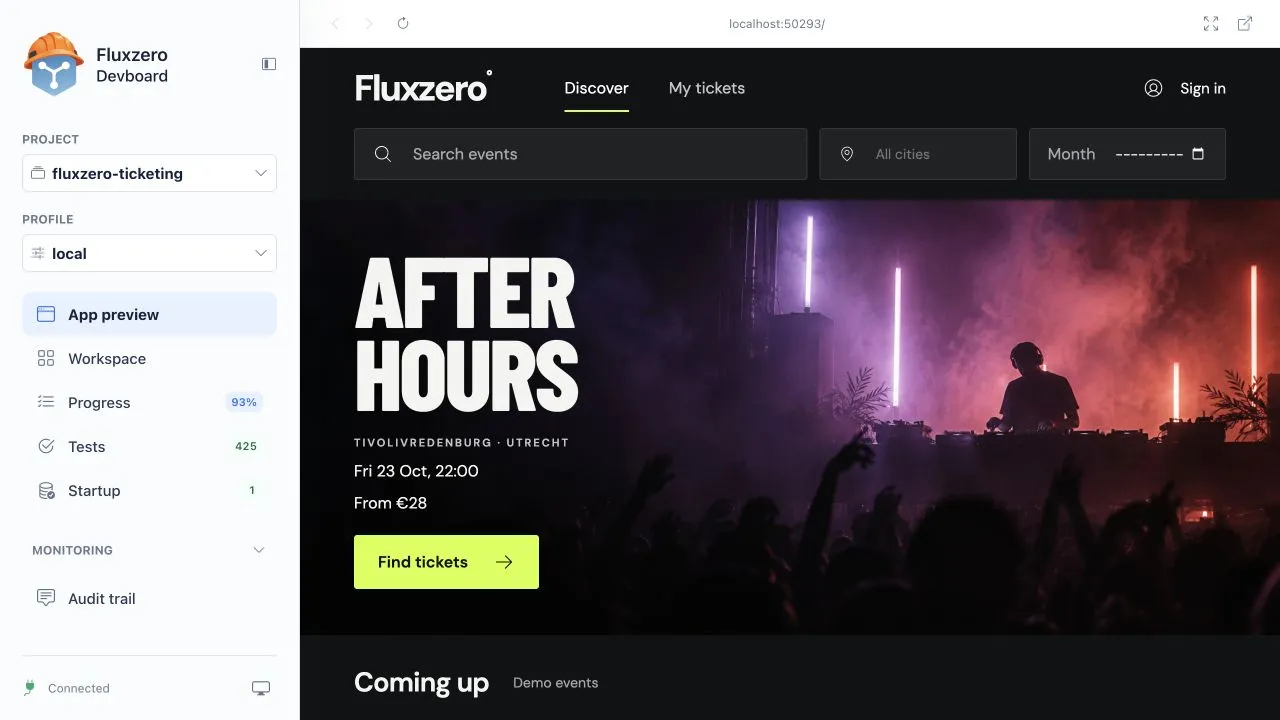
Section titled “App preview”App preview embeds the application’s frontend and backend flow. Its toolbar supports back/forward navigation, reload, copying the app URL, expanding the preview and opening the application full page. Use a full page for sign-in, downloads or navigation that does not work correctly inside an iframe.
A successful preview can be the last working build while a newer edit fails. Use the agent’s current build status before judging whether an edit has appeared. The Dev Server manages that build and replacement process.
Workspace
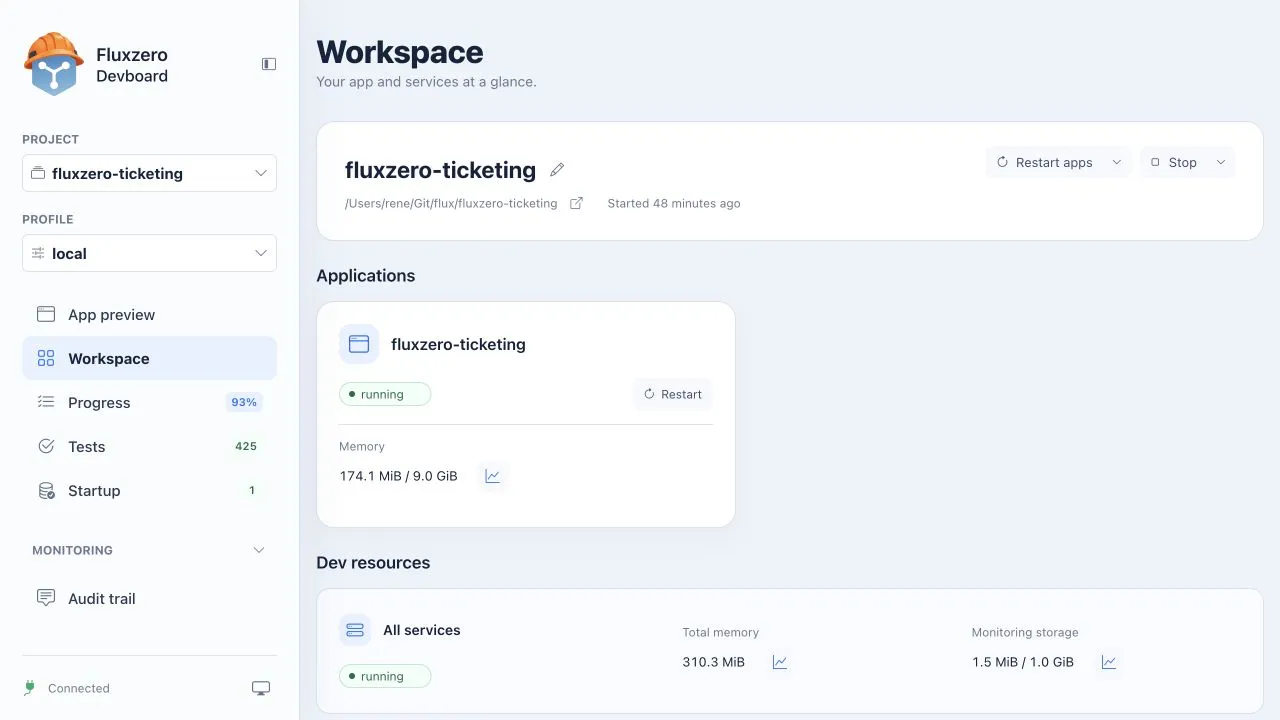
Section titled “Workspace”Workspace shows the project directory, applications, local infrastructure and resource measurements. Open a memory or monitoring-storage measurement to inspect its graph. These measurements describe local development, not the cloud bill.
Restart and stop controls have a scope. An app restart, Restart apps and a full environment restart are different actions. Inspect the scope menu and description first. A full restart can replace ephemeral local data, while startup commands may populate it again.
Progress
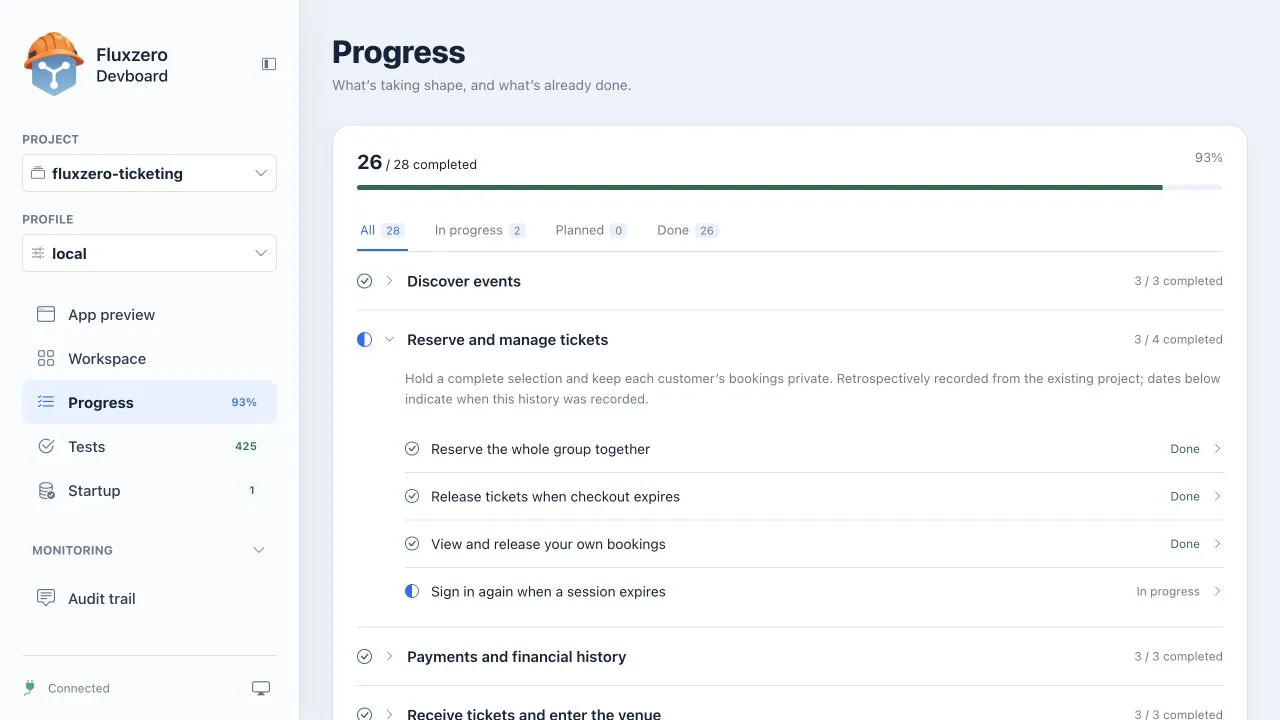
Section titled “Progress”Progress groups registered features and fixes by product area. Filters select all, in-progress, planned or completed items. Expand a group and an item to read its intended outcome and history.
How to interpret the percentage and history
The completion percentage counts recorded items. It is not a time estimate, test-coverage measure or guarantee that the app is ready for release. History can be recorded retrospectively; read its explanation before treating it as a fresh verification result. The agent maintains this record as you agree and complete work.
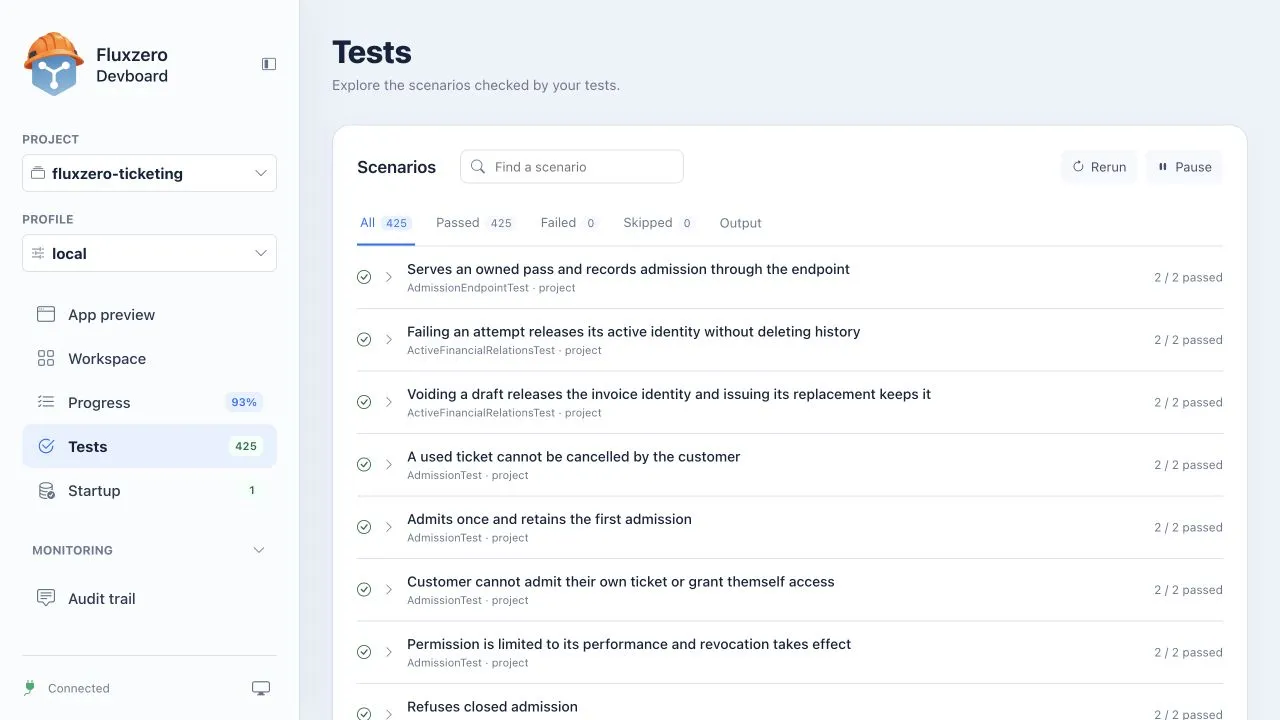
Tests lists scenarios and results from the managed test runs. Search by scenario, filter passed/failed/skipped entries and expand groups to inspect parameterized cases. A displayed scenario group can represent several tests, so the number of list rows need not equal the test count.
Output exposes test output. Rerun requests another run; Pause pauses automatic tests without being an instruction to stop the whole application. A paused or skipped test is not a passing result. Some projects have additional frontend/browser checks outside this list.
Startup
Section titled “Startup”Startup lists preparation actions, such as seeding demo data. Search or filter the list and expand an action to inspect its detail.
| Status | Meaning |
|---|---|
| Completed | The startup action completed |
| Failed | The action failed; inspect the reported error |
| Pending | The action has not completed and may be waiting or blocked by an earlier prerequisite |
If the app runs but expected demo data is missing, these results help separate a preparation failure from an application bug. Do not repeatedly rerun actions with side effects without understanding their behavior.
Monitoring
Section titled “Monitoring”Audit trail, Logs, Traces, Issues, Documents and Insights provide local evidence. Their availability depends on the environment. Workspace contains local resource measurements; the cloud dashboard also has a dedicated Resources view.
See Monitoring views for controls and meanings, understanding evidence for interpretation, and investigating a problem for a procedure.
© 2026 Fluxzero