



Cloud dashboard reference
Open the Fluxzero dashboard for the operational view of a published app. The navigation reflects your selected organization, cluster and permissions. It is separate from the local Devboard.
- Organization
People, integrations, billing and environments.
- Cluster
Applications, runtime data and shared settings.
- Application
The deployed version, running tasks and app settings.
Organization
Section titled “Organization”| Area | What it contains |
|---|---|
| Overview | The organization and its available environments |
| Users | People with access to manage the organization |
| Integrations | GitHub/OIDC/API-key authentication and authorizations for automation |
| Variables | Configuration shared at organization scope |
| Domains | Organization-level domain management |
| Backups | Recoverable sources, recovery windows and requests to restore to a new cluster |
| History | Organization configuration and lifecycle changes |
| Billing | Plan, charges and billing information available to your role |
| Support | Support requests and assistance |
These users are cloud collaborators, not the end users signing into your application. See Identity and access. Internal administration menus visible to platform administrators are outside the ordinary customer workflow.
Cluster
Section titled “Cluster”A cluster is a managed environment containing applications and their runtime data. Its overview links to applications, tasks, variables, domains, history, usage and settings.
| Area | What to check |
|---|---|
| Applications | Configured workloads and the app you intend to inspect |
| Tasks | Running instances and deployment/task state |
| Variables | Settings and secrets at cluster scope |
| Domains | Connected hostnames, target domain and readiness; additional web origins |
| History | Which configuration or lifecycle change occurred and when |
| Usage | Resource usage over time |
| Settings | Name/capacity and separate pause or destruction actions |
Application
Section titled “Application”Open Applications, then the application. Its overview shows the selected version and tasks, with links to configuration, usage and history. A configured application can exist without a successfully running task.
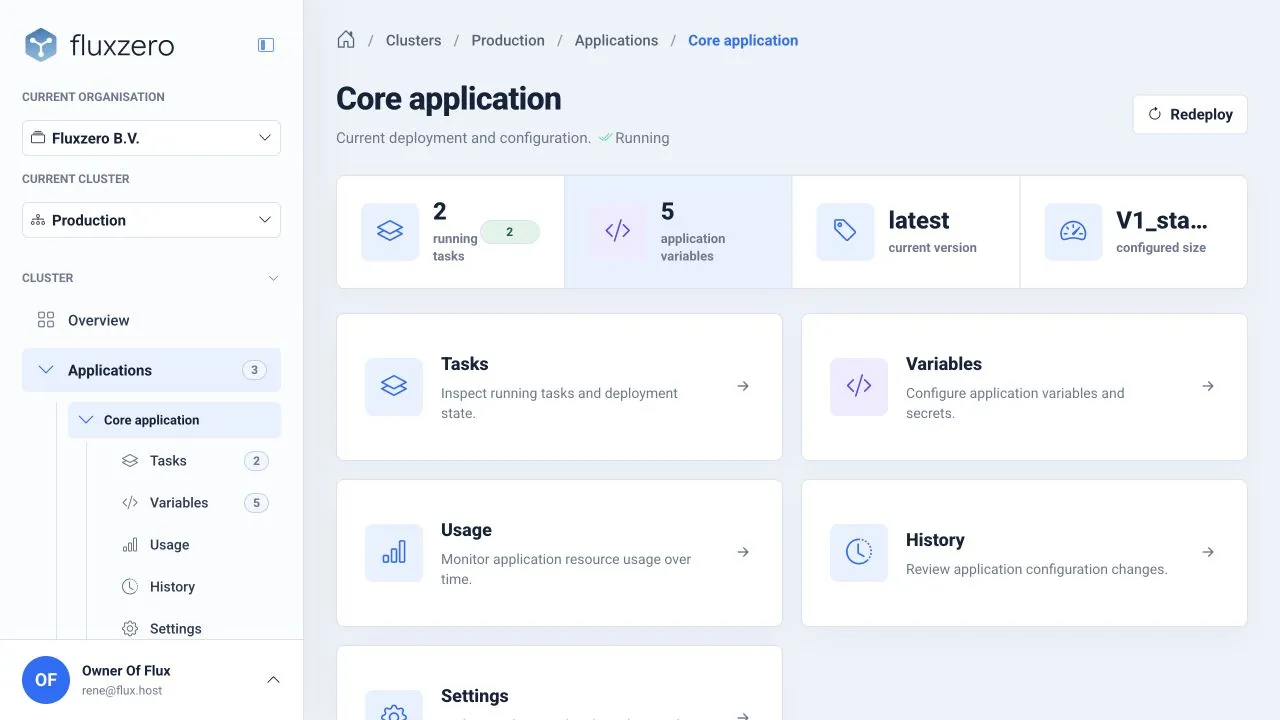
The screenshot uses the dashboard demo. Choose your own application’s equivalents.
After delivery, compare the expected version with this overview, inspect Tasks and try a real flow at the application’s address. A successful CI step is only one part of that check.
Monitoring and recovery
Section titled “Monitoring and recovery”Monitoring includes Audit trail, Logs, Traces, Issues, Documents, Resources and Insights. Select the intended cluster/application and time range; Monitoring views describes them.
Backups display a recovery window and base backups for each available source. The restore action creates a new cluster. It does not itself mean traffic has moved or every external service has been restored. Follow Recover a version or data.
Complete a task
Section titled “Complete a task”Use Connect a custom domain for your own hostname.
© 2026 Fluxzero