



Monitoring views
Use this reference to choose a monitoring view and understand its controls. For a procedure that follows one problem through the evidence, use Investigate unexpected behavior. For the limits of each signal, see What the evidence tells you.
| View | Main question |
|---|---|
| Audit trail | Which requests, actions and changes were recorded? |
| Logs | What diagnostic messages did the application emit? |
| Traces | How is the work caused by one action connected? |
| Issues | Which failures recur, and what is their status? |
| Documents | Which searchable records were saved? |
| Resources | What capacity is being used over time? |
| Insights | Which application work accounts for activity and duration? |
Open the right environment
Section titled “Open the right environment”For a published app, open the Fluxzero dashboard, choose the organization and cluster that run it, and expand Monitoring. Select the relevant application and time range within the view. A cluster is the environment containing your running applications and their data.
During local development, open Monitoring in Devboard. You can learn the tools by trying the public Ticketing example and following your own actions.
The screenshots use Ticketing’s local demo, plus resource and issue overviews from Fluxzero’s own running applications. Your published app’s activity is available in the Fluxzero dashboard; Devboard shows the selected local project. Locally, resource measurements appear in Workspace rather than a separate Resources navigation item.
Audit trail: what happened?
Section titled “Audit trail: what happened?”Audit trail is the history of messages moving through your app. In plain terms, these include requests from a browser, actions your app was asked to perform, and facts recorded after a change.
In Ticketing, ReserveTickets means someone asked to reserve places. ReservationHeld records that the reservation
was held, and ChangeSeatInventory records a change to availability. Seeing a request alone does not prove that the
whole flow completed: follow the resulting messages as well.
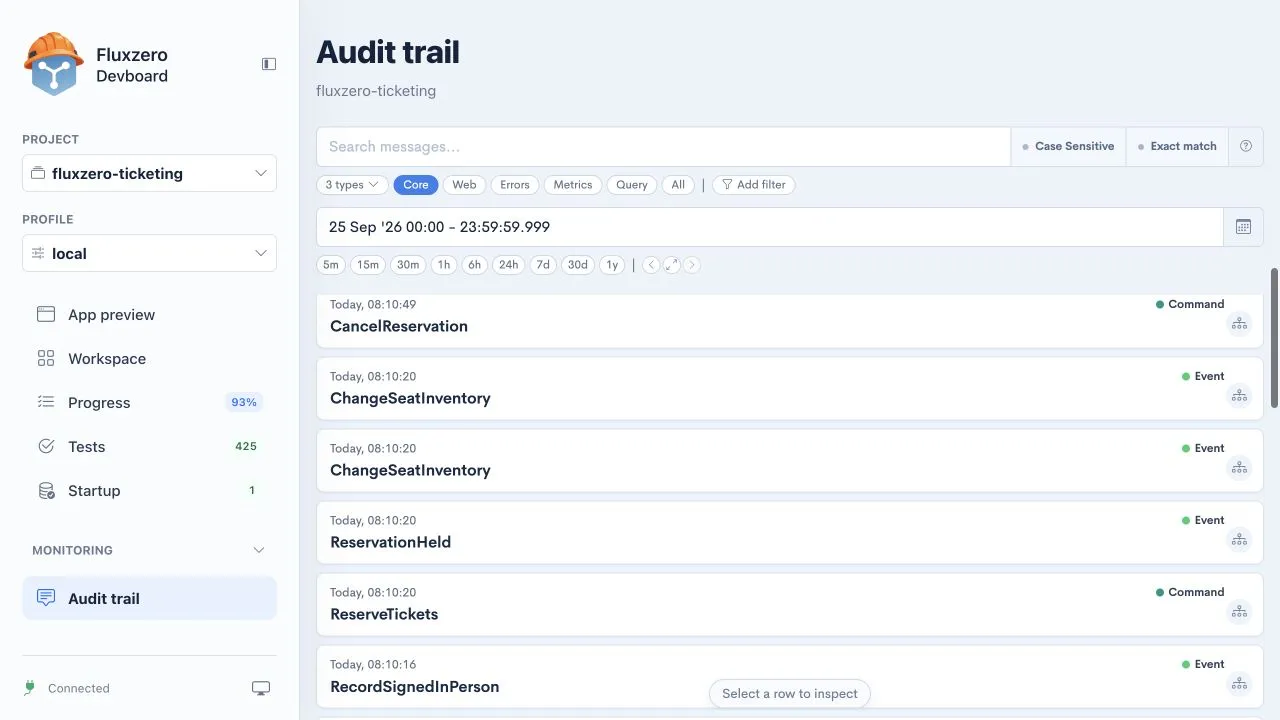
Choose a time range, then search for an action name or a known identifier. The presets help narrow the results: Core covers commands, events, and errors; Web focuses on web traffic; Query shows requests for information. Use Add filter to narrow further when needed.
Select a result to open its details:
- Overview identifies the message, when it happened, and its connections to other work.
- Metadata holds contextual information that travels with the message.
- Payload contains the message’s actual contents, such as the performance and places being reserved.
Use See trace to move from an individual record to its connected flow.
Traces: how did the action travel through the app?
Section titled “Traces: how did the action travel through the app?”A trace connects work caused by an action. The timeline shows when each part started, how long it took, and the messages and responses it produced. A handler is the part of the app that processes a particular message.
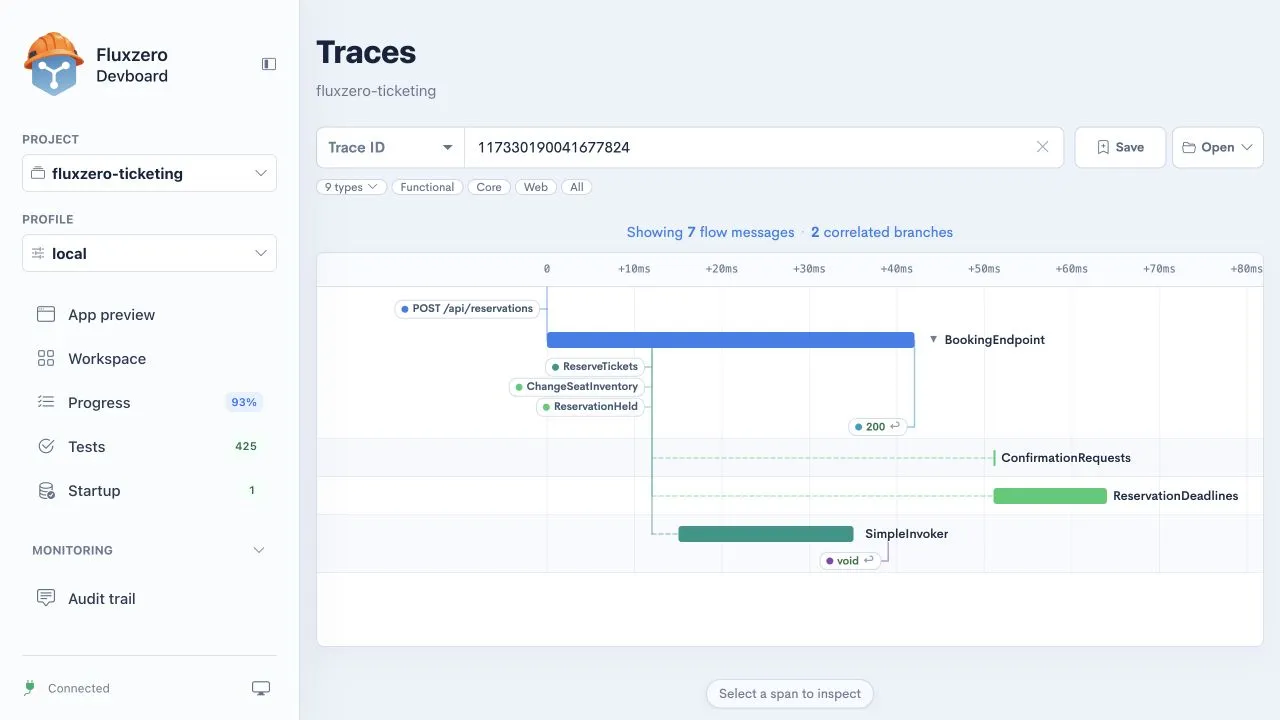
This example starts with POST /api/reservations, the browser asking to reserve tickets. The flow includes
ReserveTickets, an inventory change, and ReservationHeld. Follow-up handlers process confirmation requests and
reservation deadlines. The 200 response marks the successful response to the browser; background work can continue
on its own branches.
Open a trace from the audit trail, or use the search field when you already have a trace identifier. Click a message or timing bar to inspect it. The type filters reduce visual noise; Save and Open let you return to a trace while investigating.
A trace helps answer different questions from a list of logs: did the request reach the right code, which step failed, did a follow-up run, and was the delay before processing or inside it?
Logs: what did the app report?
Section titled “Logs: what did the app report?”Logs contains diagnostic messages written by the application. These can explain a connection failure, a rejected response from another service, or a decision the app recorded while processing work.
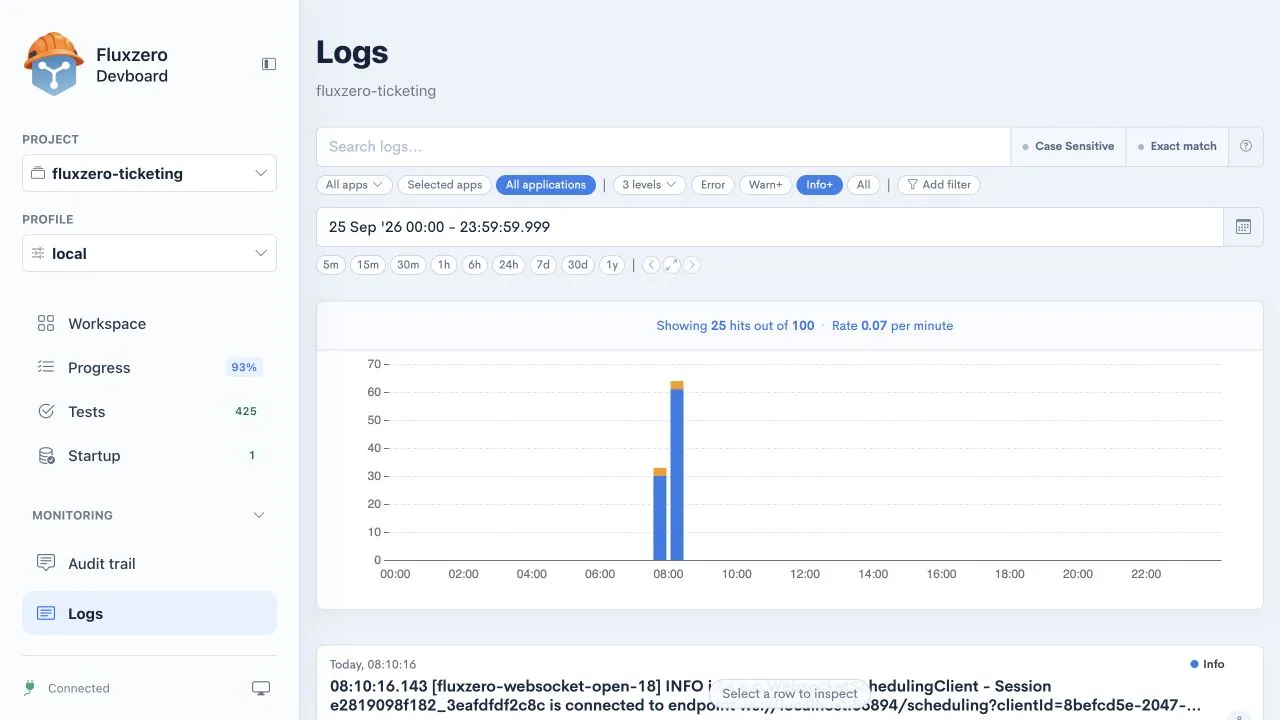
Select the application, choose the time range, and search for relevant text. Error, Warn+, and Info+ help choose the amount of detail. Open a row for the complete entry and follow its trace link when one is available.
A warning and a failed action are different signals
The audit trail tells you which messages passed through the system; logs add what the application reported about its execution. A warning does not automatically mean a customer action failed. Match it to the action and its result.
During local development, your agent can also inspect Dev Server build and process output. That is useful when the app never started; application logs become useful once it is running.
Issues: which failures need attention?
Section titled “Issues: which failures need attention?”Issues groups recorded problems so you can investigate a recurring failure without treating every occurrence as an unrelated report. Filter by status, severity, text, and time range to focus on the problem you are examining.
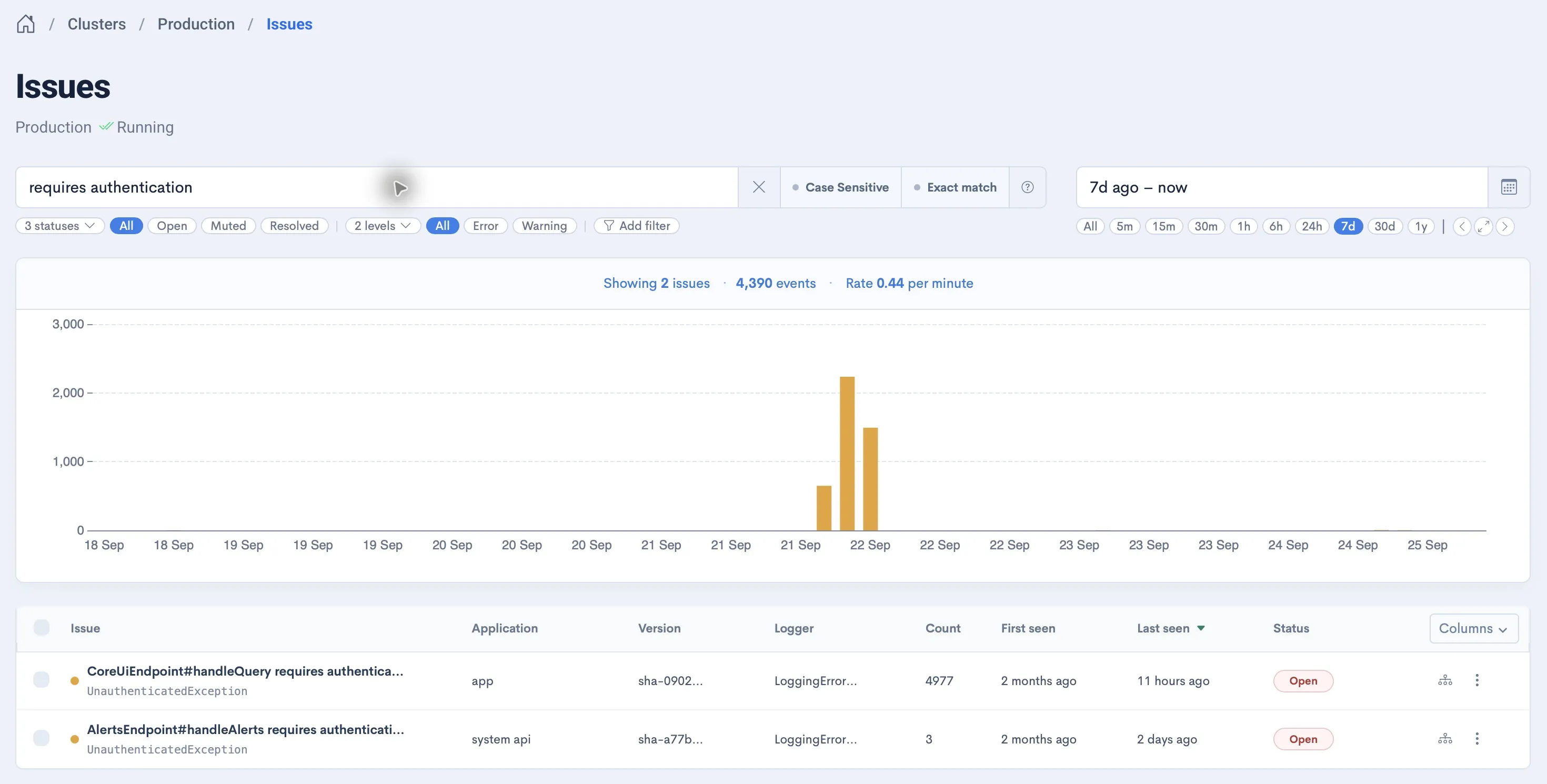
The screenshot filters for authentication warnings. The chart shows when they occurred; the list groups repeated reports and shows their application, version, count, and status. An authentication warning can mean access was correctly refused, so investigate the context before deciding whether the application needs a fix.
Open a group to inspect its occurrences and available context. Compare when the problem started and recurred, then follow the evidence into logs or traces to understand the cause.
Open, Muted, and Resolved describe how an issue is being tracked. Muting an issue does not fix the app. Resolving it should follow a verified fix; check subsequent activity to see whether it returns.
What an empty issue list tells you
No matching issues means no issues were found within the selected scope. It does not prove that every product rule is correct. Keep trying complete flows and maintaining the scenarios in Tests.
Documents: what data was saved?
Section titled “Documents: what data was saved?”Documents lets you inspect stored, searchable data. Choose a collection, search or filter its records, and open a row. The document view shows its contents; Index metadata describes the indexed record.
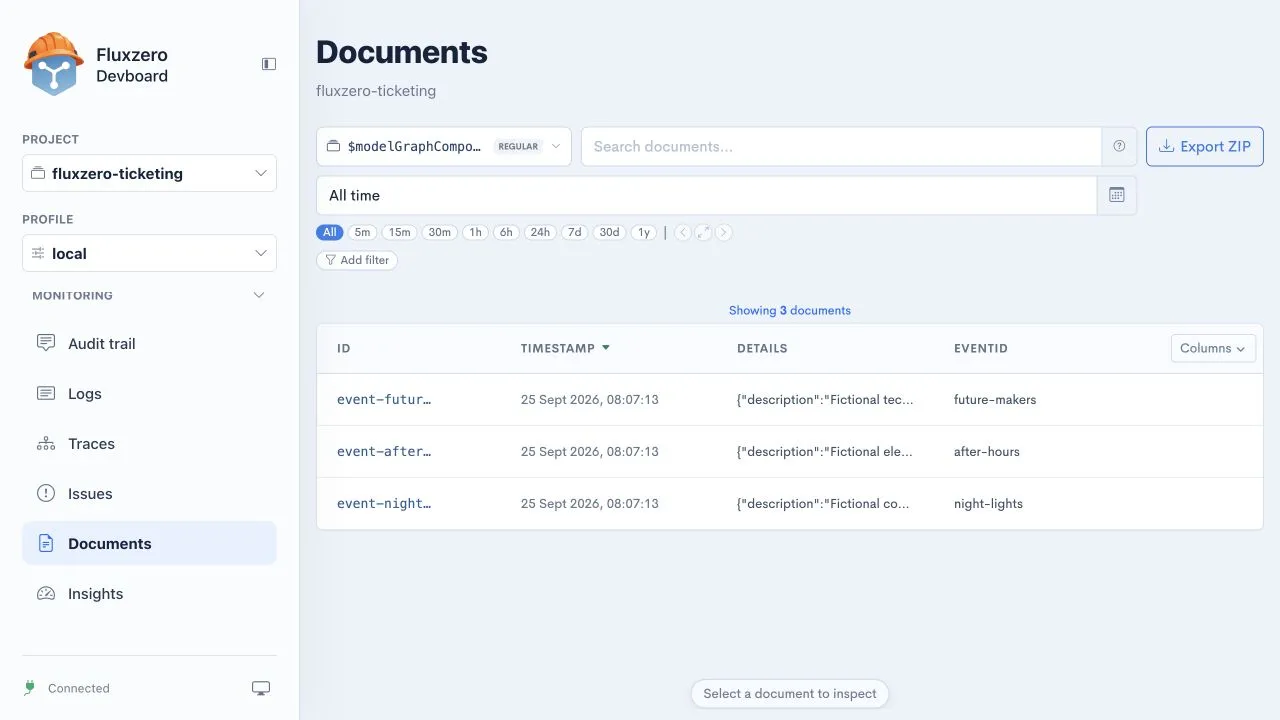
The overview lists the saved demo events, including After Hours. Your agent can inspect a record and compare it
with the app. If a screen shows an old title, that comparison helps decide whether to investigate saving, querying,
or displaying the information.
Collections depend on your app. They can contain its models or data prepared for search and screens. This view shows the selected collection’s records; the audit trail provides the history of actions that led to changes.
Use Columns to choose which fields to compare in the result table. Export ZIP is available when you need an export of the selected search results. You usually do not need an export for debugging: the agent can search and inspect the relevant records through its tools.
Resources: is the app approaching its capacity?
Section titled “Resources: is the app approaching its capacity?”Resources in the Fluxzero dashboard shows CPU, memory, and available storage measurements over time. Select the application and period, and compare usage with its configured capacity. Grouping by application or task helps separate the overall picture from individual running instances.
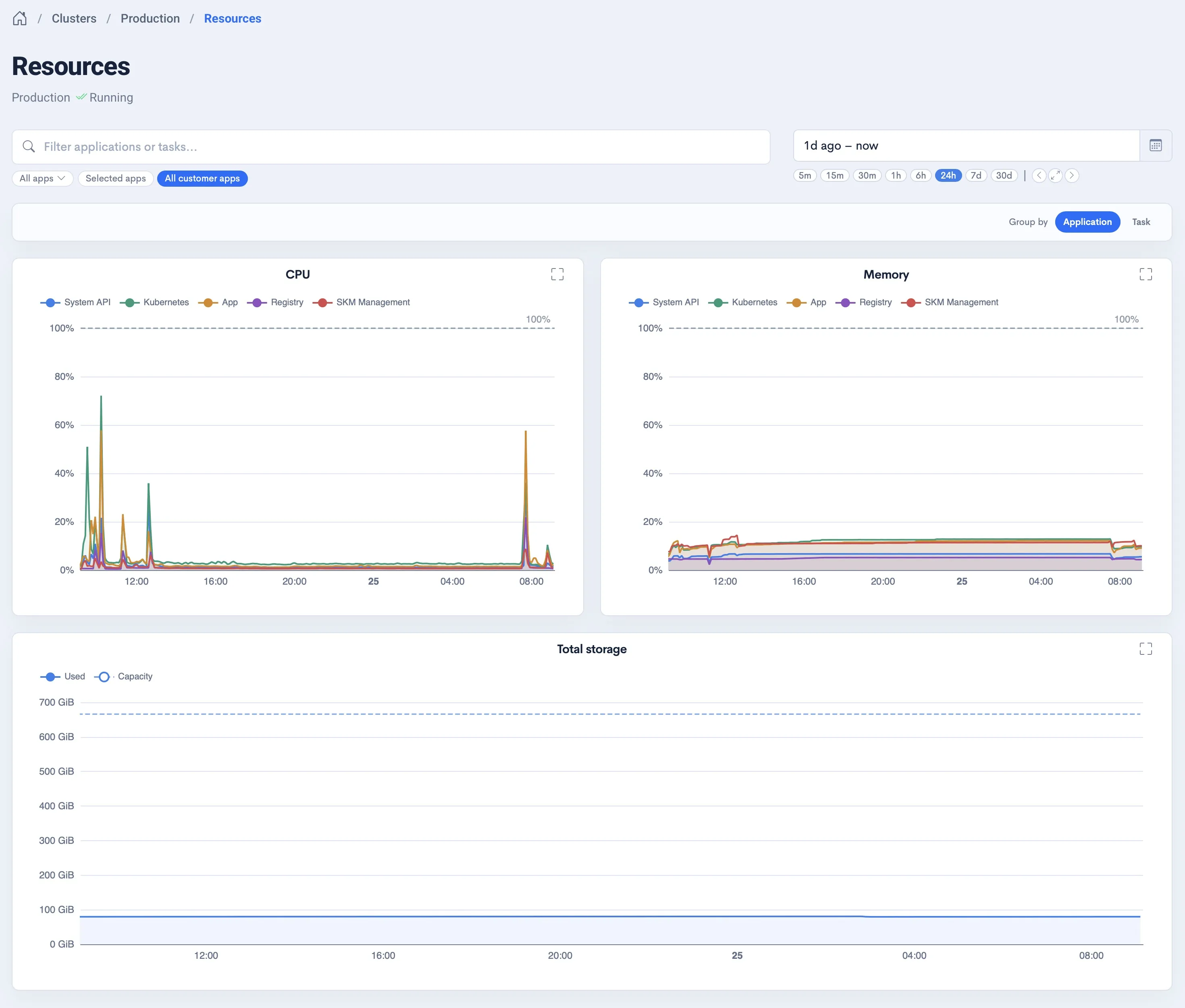
The overview compares applications over the same period. Here, short CPU peaks are visible alongside steadier memory usage, while storage remains well below the available capacity. These are different signals: a CPU peak alone does not mean the application needs more memory or storage.
CPU measures processing work; memory is the working space used while the application runs; storage holds retained data. A brief spike and usage that stays close to a limit call for different investigations. Compare the same period in Insights to see which application work was active.
In Devboard, Workspace shows the local app and services, memory measurements, and monitoring storage, with graphs available from the metrics. Those describe your development environment, not the capacity or bill of your published app.
Insights: where does the app spend its time?
Section titled “Insights: where does the app spend its time?”Insights summarizes activity across applications, consumers, handlers, and message types. A consumer is a group that processes messages; the connected map lets you move from the application to the work performed inside it.
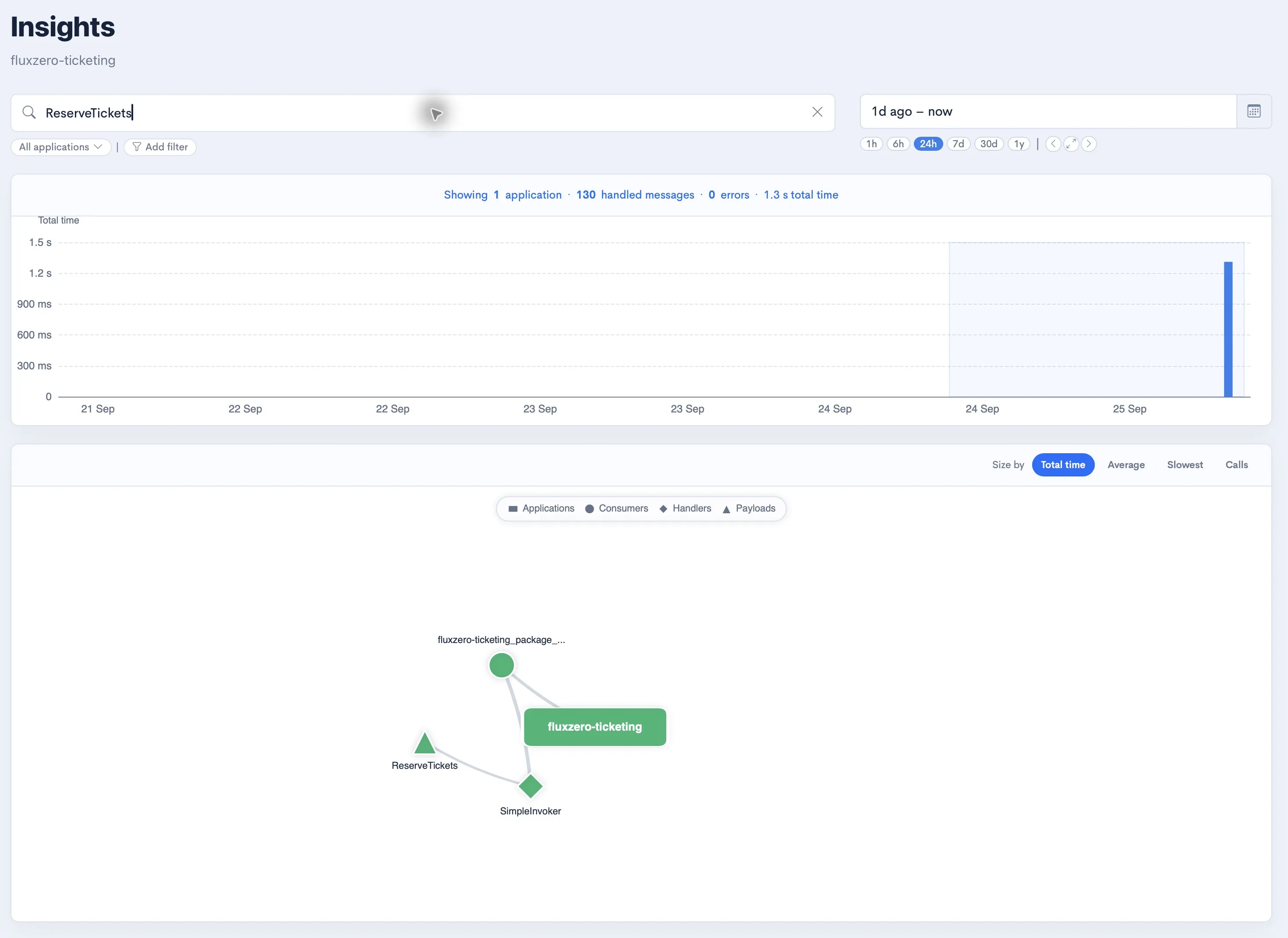
Choose an application and time range, or filter for the behavior you are investigating. The summary and histogram show how much work happened and when. Use the connected map to explore where that work belongs.
Size by changes what stands out:
- Total time highlights work that consumes the most time overall.
- Average highlights work that is expensive per call.
- Slowest helps find unusually slow individual handling.
- Calls highlights frequently executed work.
Read the different timing measures
These answer different questions. Something can dominate total time because it runs frequently while each call is fast. An occasional slow operation can be hidden by a healthy average. Select a node to inspect its measurements and connected work before drawing a conclusion.
For a guided first inspection, follow Explore a working app. For a failure, use Investigate unexpected behavior. Agent access requires tools connected to the intended environment; the local plugin does not automatically grant access to production.
When a view is empty
Section titled “When a view is empty”Check the selected project or organization, environment, application filters, message types, and time range. Recent activity may take a moment to appear. Older evidence depends on the environment’s retained history.
Ask your agent to check whether you are looking at the right source before restarting anything. Restarting a local app does not necessarily clear retained monitoring history, and an empty result does not by itself explain why an action failed.
Continue with Test and improve your app to turn observations into checks for the next version. Developers who want the underlying concepts can explore Message handling.
© 2026 Fluxzero